 ChordPal
Playlists Pro
Turn your songs into a set list for the evening.
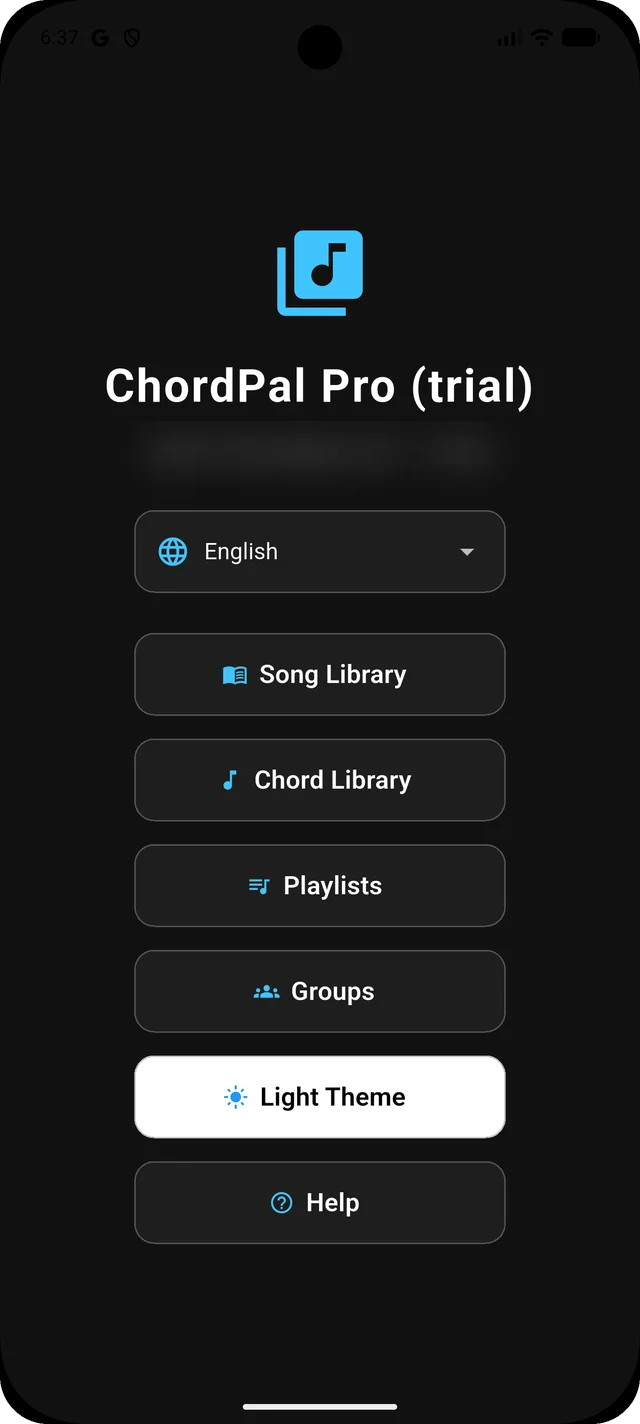
1Open Playlists
On the Home screen tap Playlists.
 1
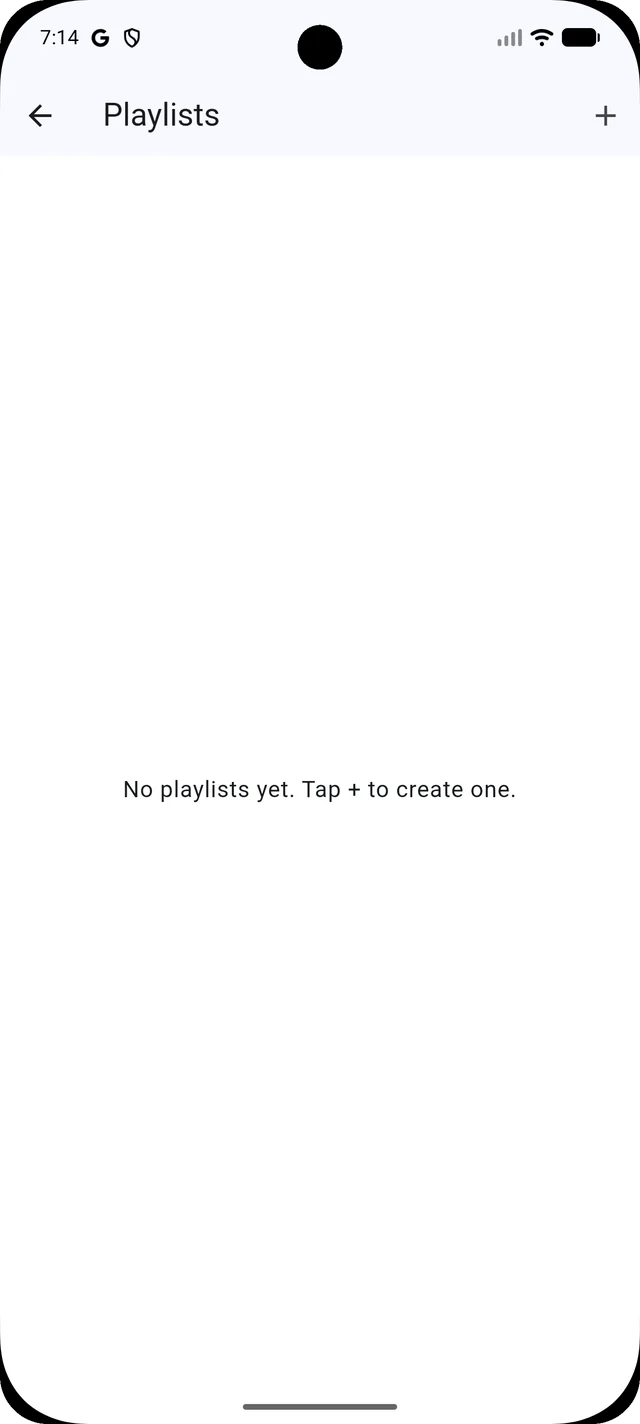
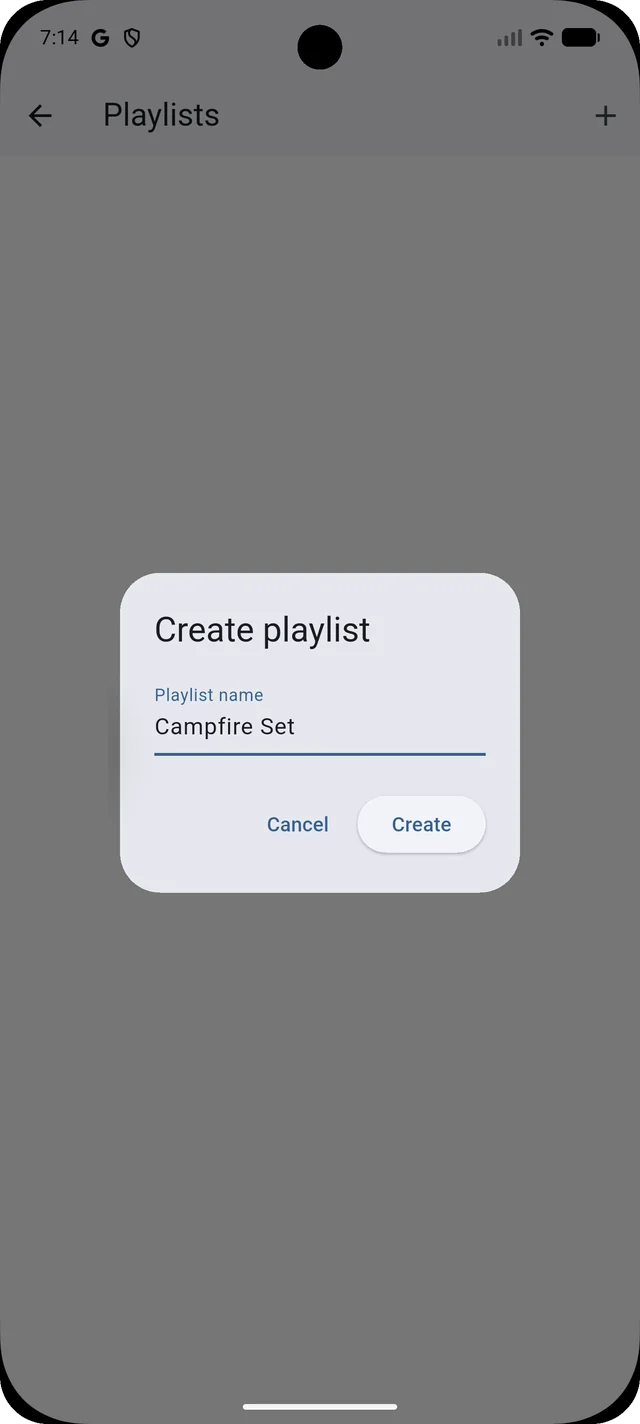
2Create a playlist
Tap the + button at the top right, type a name – for example “Campfire Set” – and tap Create.
 A
 AB
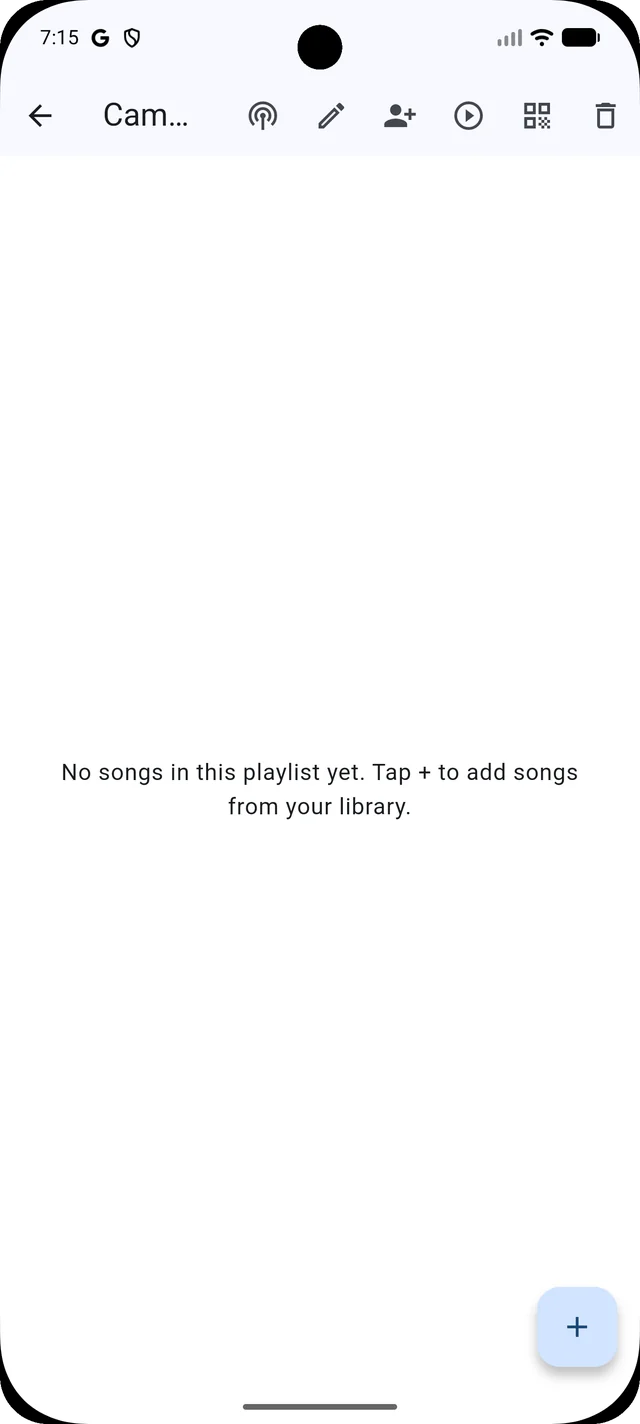
3Add songs
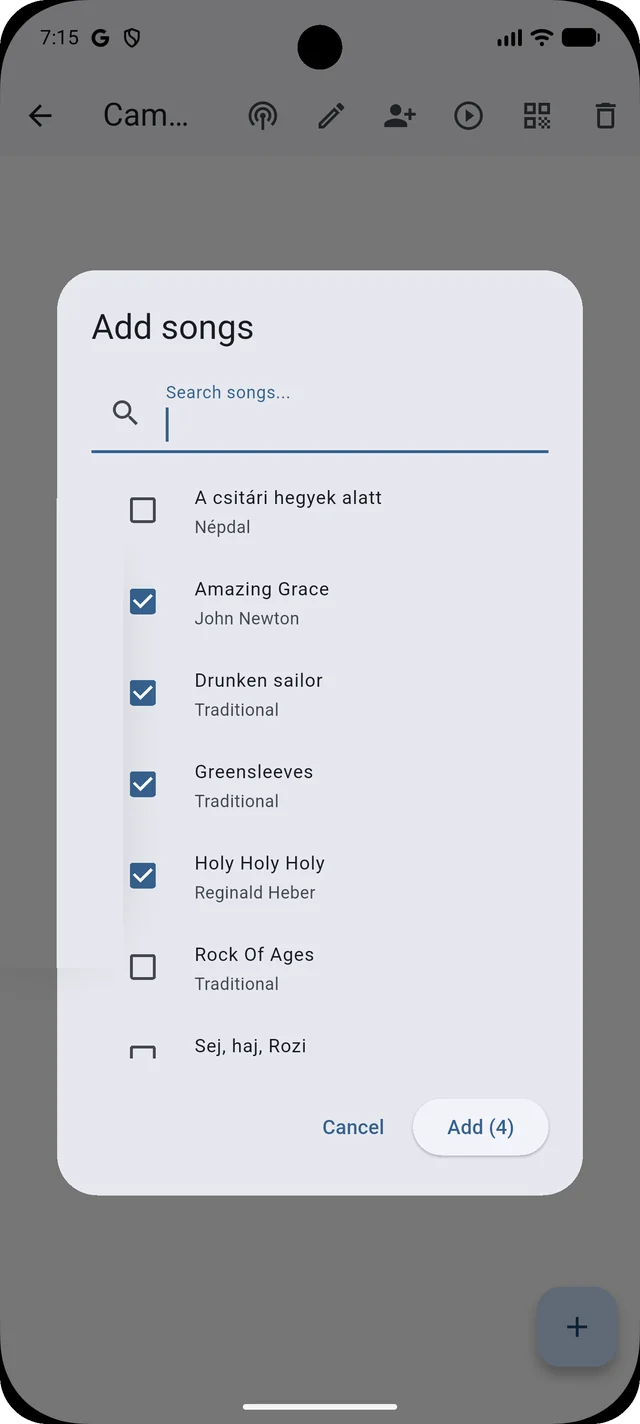
Open the playlist and tap the blue + button at the bottom right. Tick the songs you want and tap Add. The list shows the songs from your Song Library.
You can also tap the playlist icon on a song’s row in the Song Library.
 A
 AB
4Your set list
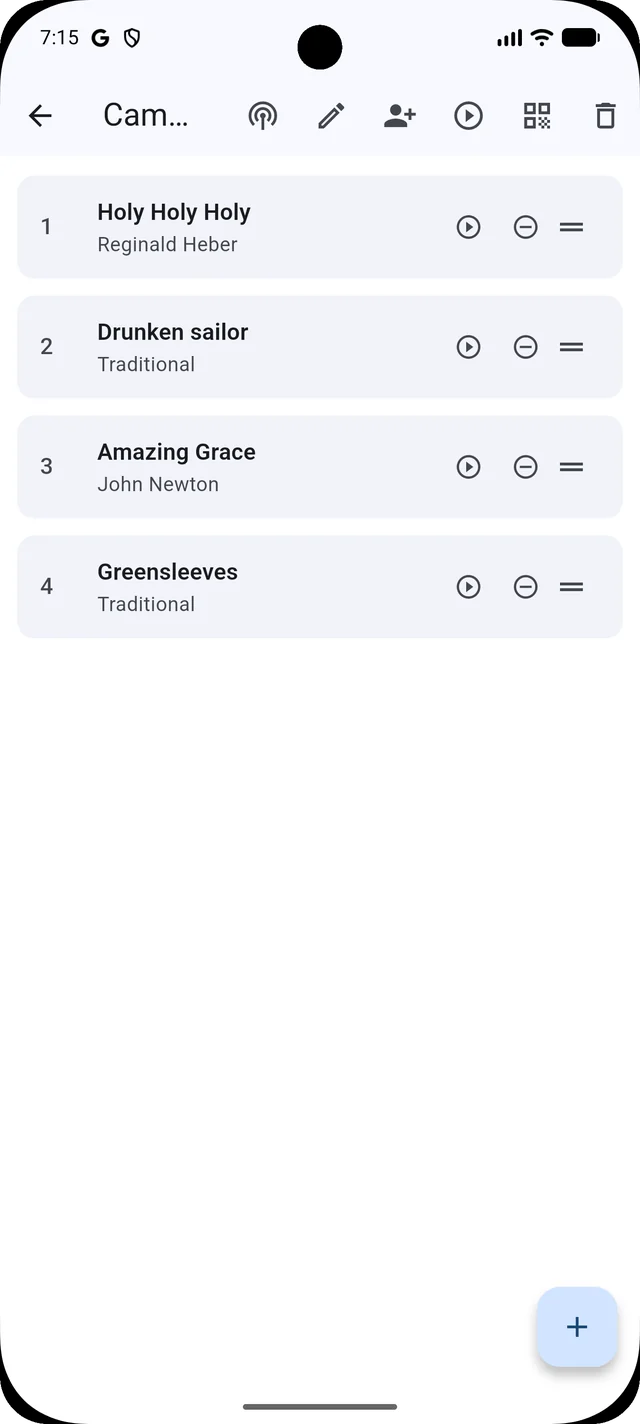
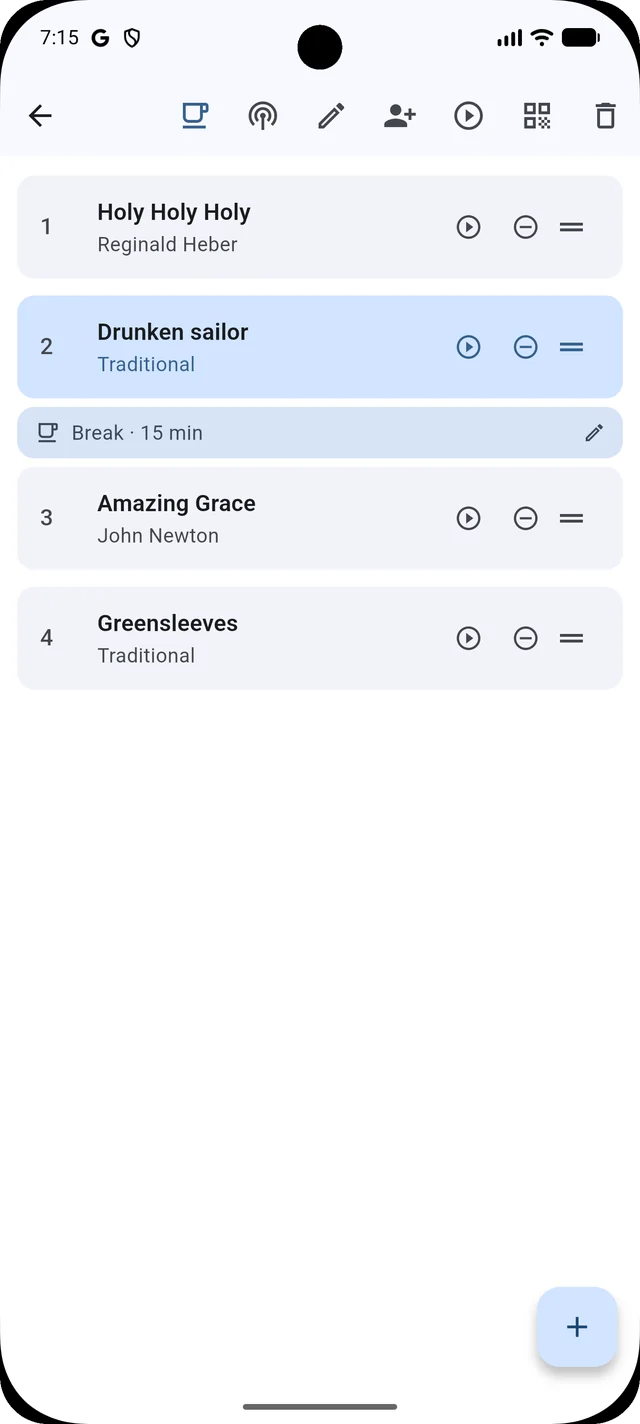
The songs appear in the order you will play them. Each row has three buttons on the right:
- ▶ – start a concert from this song (see the Live Concert tutorial).
- ⊖ – remove the song from the playlist (the song stays in your library).
- ≡ – hold and drag to change the order.
 AB
5Plan a break
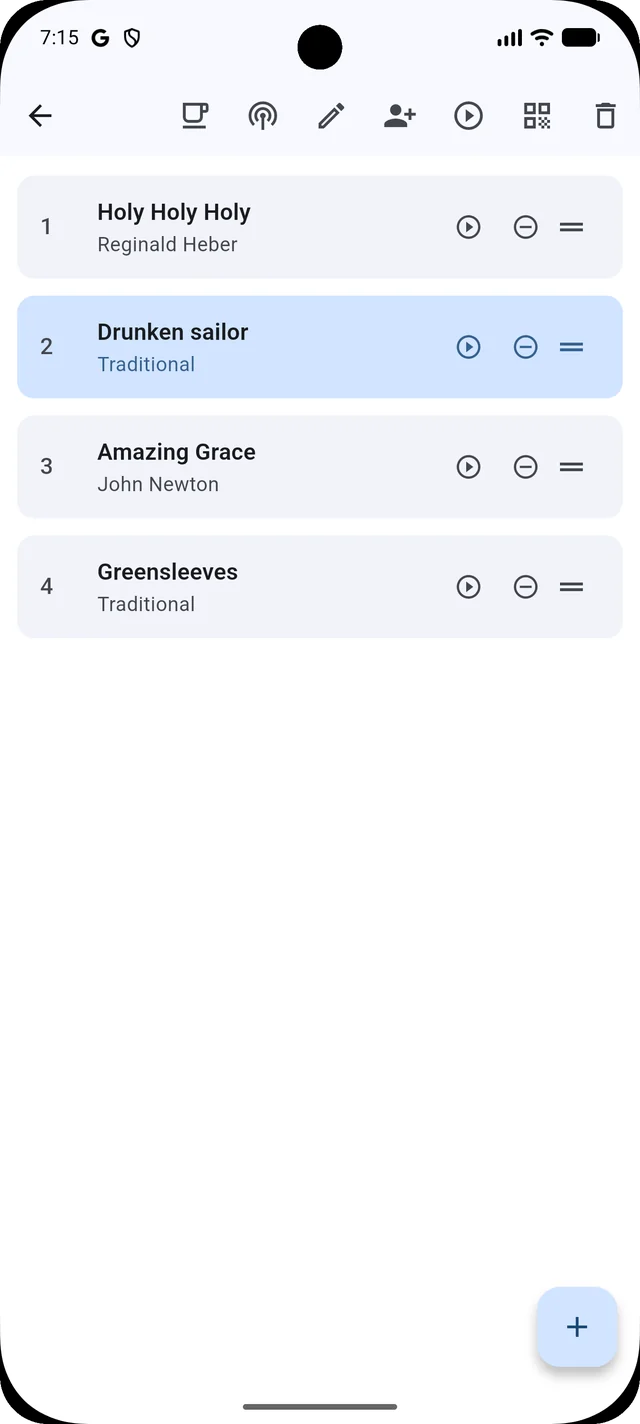
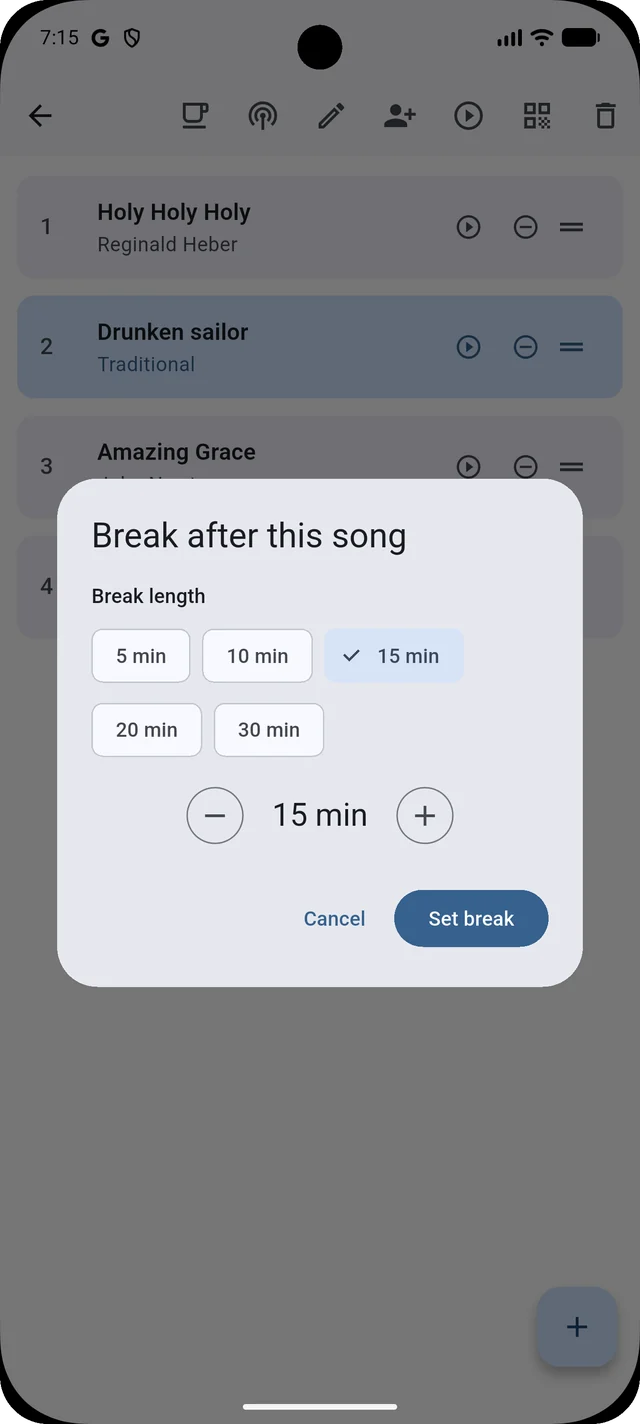
Tap a song once to highlight it. A cup button appears in the top bar – tap it to plan a break after that song. Choose 5, 10, 15, 20 or 30 minutes, or set your own length with − and +, then tap Set break.
The break appears as a bar between the songs. Tap the pencil on the bar to change it, or tap the cup button again to remove it.
 AB
 ABC
 A
6Share the playlist
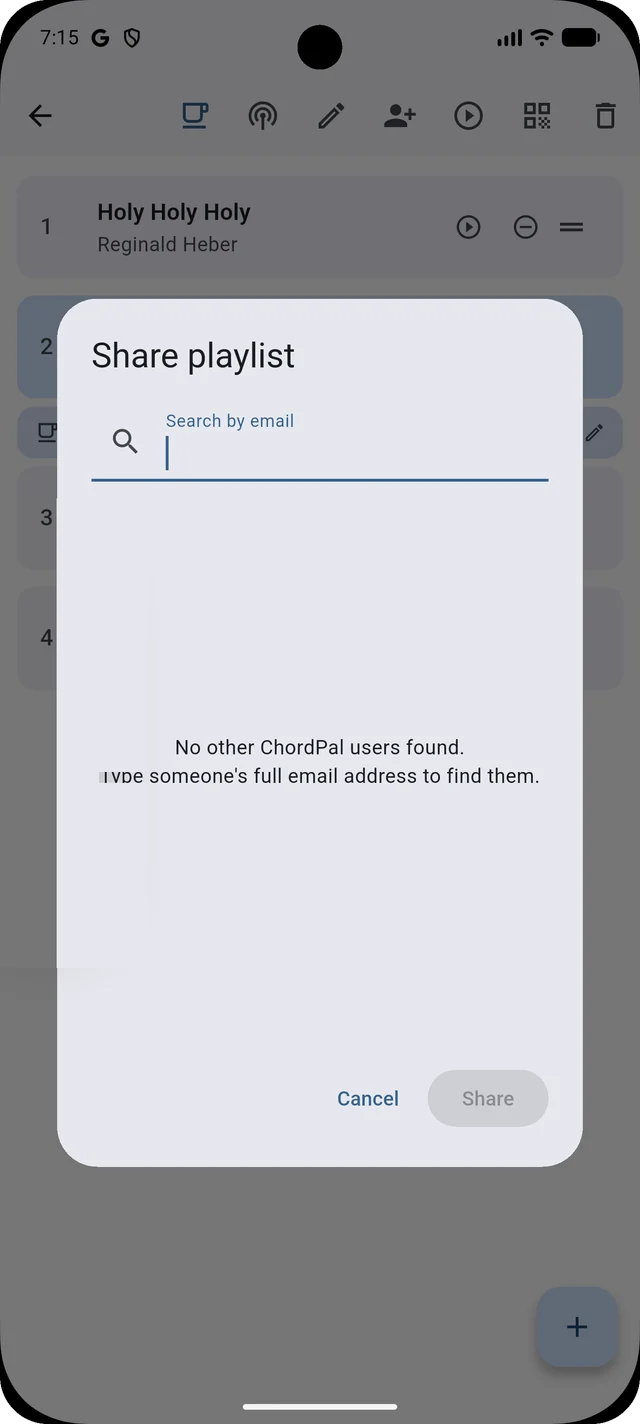
Tap the share icon (a person with a plus) in the top bar, type the person’s full email address and tap Share. They need a ChordPal account, and sharing works the same way as sharing a song.
 AB