 ChordPal
Groups Pro
Share a songbook with your band – everyone plays from the same songs.
A group is a few ChordPal users – a band, a choir, a family – who share songs with each other. Every member can open and edit the group’s songs.
1Open Groups
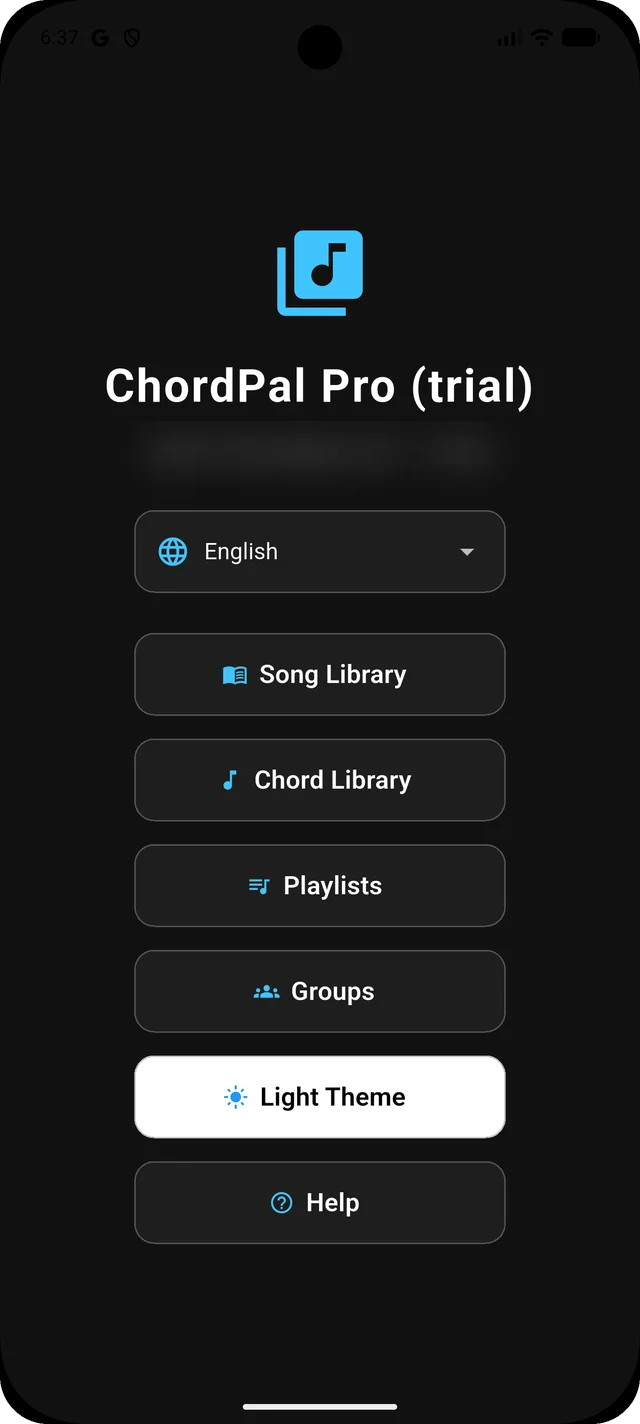
On the Home screen tap Groups. A red badge shows invitations that are waiting for you.
 1
 A
2Create a group
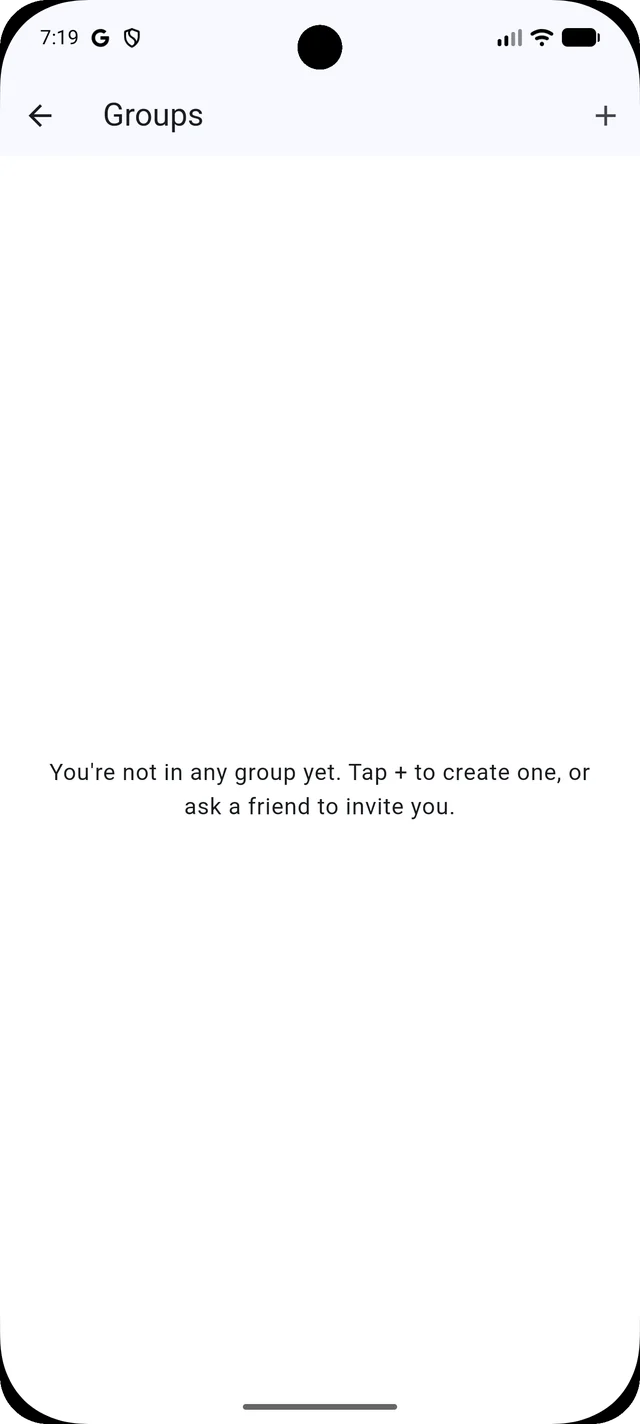
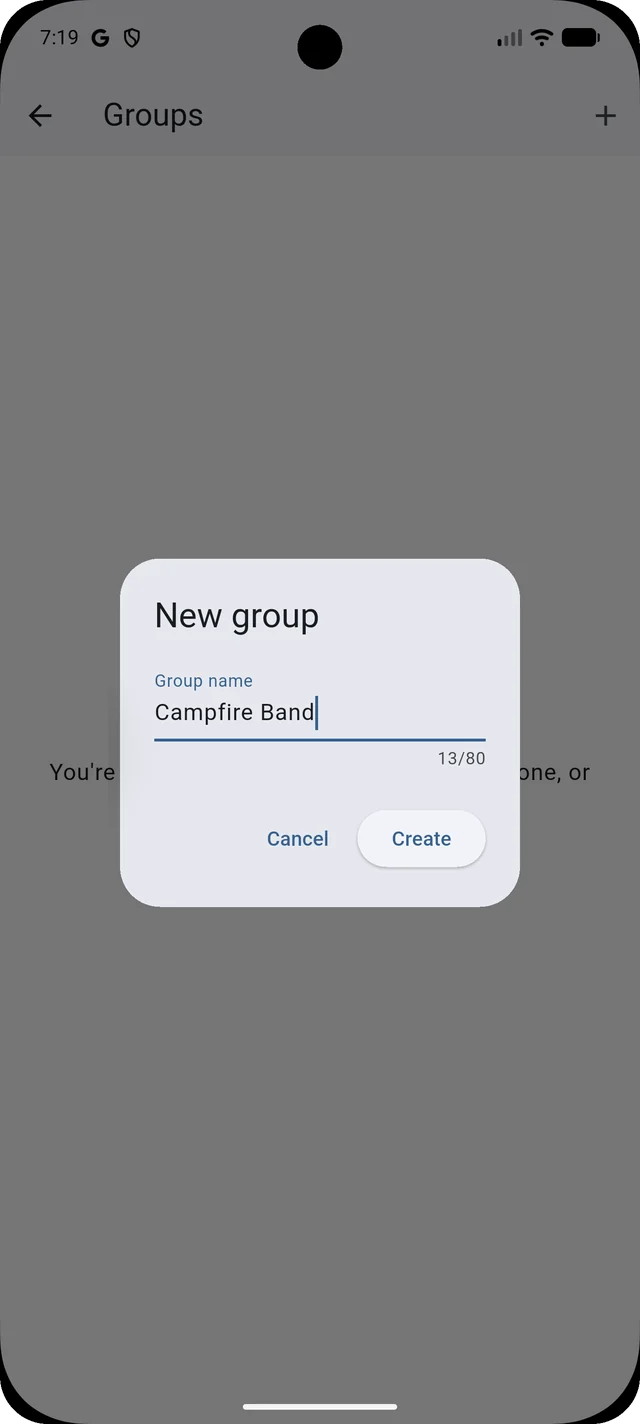
Tap +, type a name – for example “Campfire Band” – and tap Create. You become the group’s admin.
 AB
3Share your whole library?
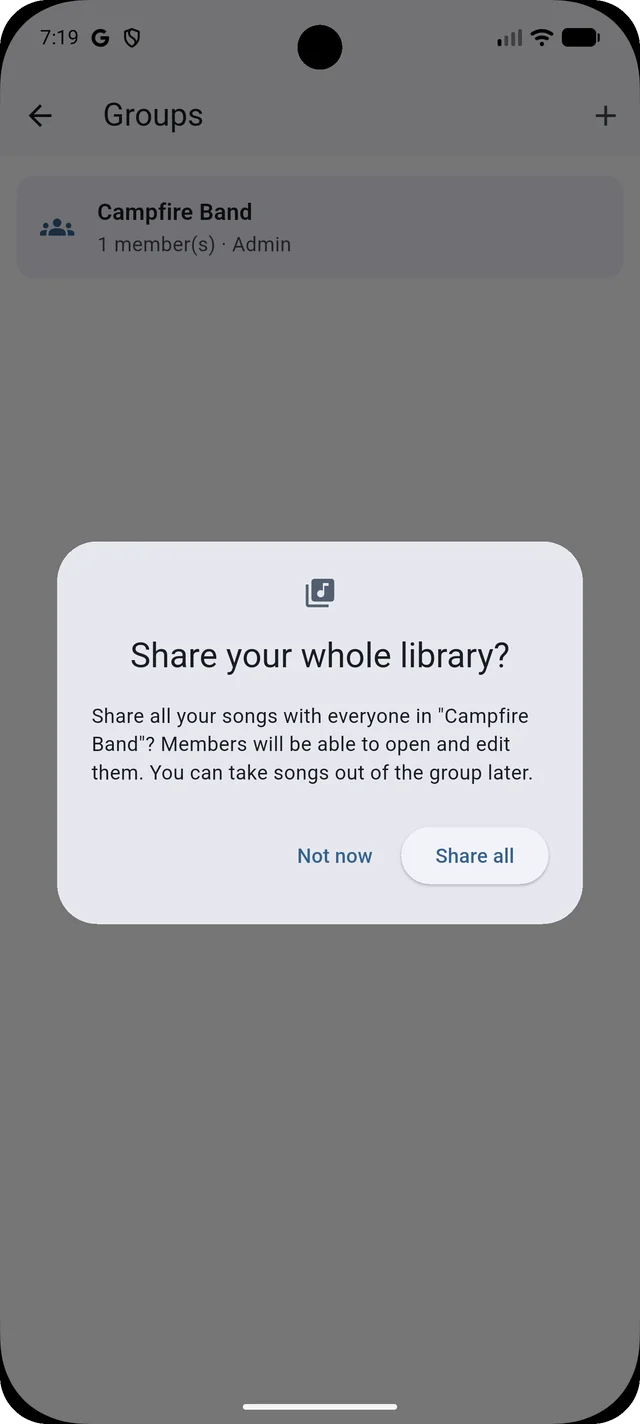
ChordPal asks if you want to share all your songs with the group right away. Tap Share all, or Not now to choose songs yourself later. You can change your mind at any time.
 AB
4The group screen
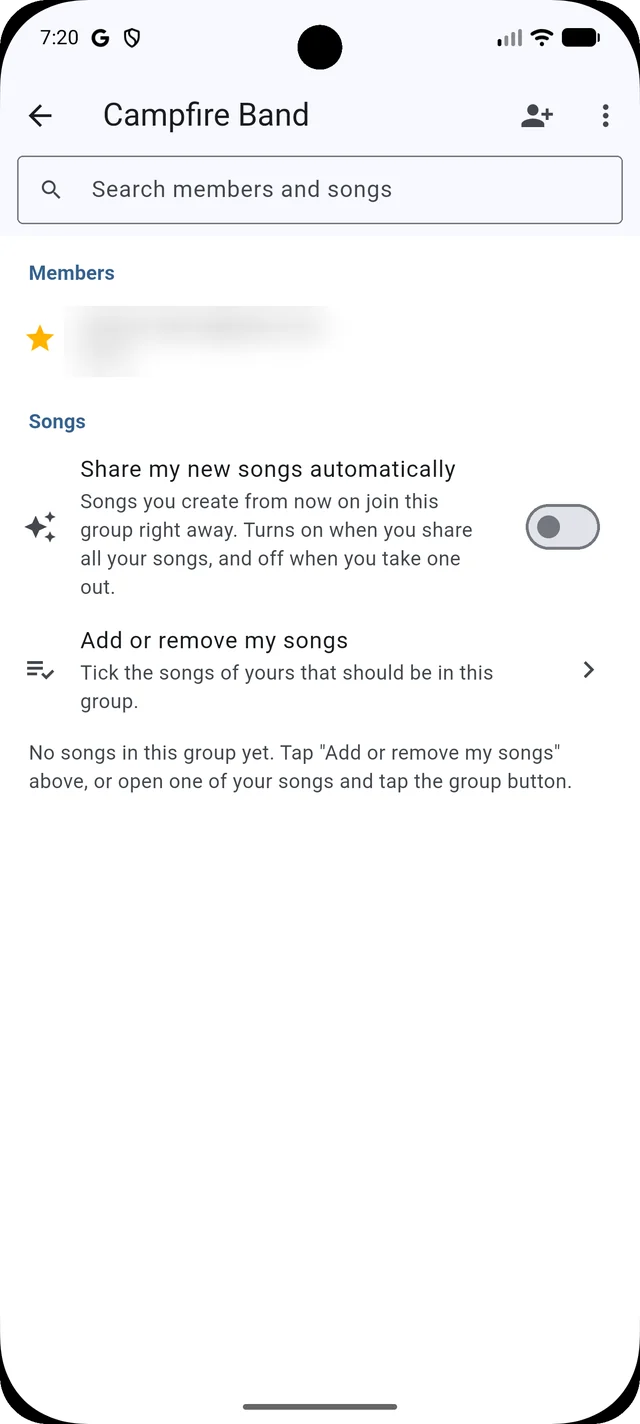
Here you manage the group. The members are listed at the top, then the songs.
- Invite (person with a plus) – add people by email.
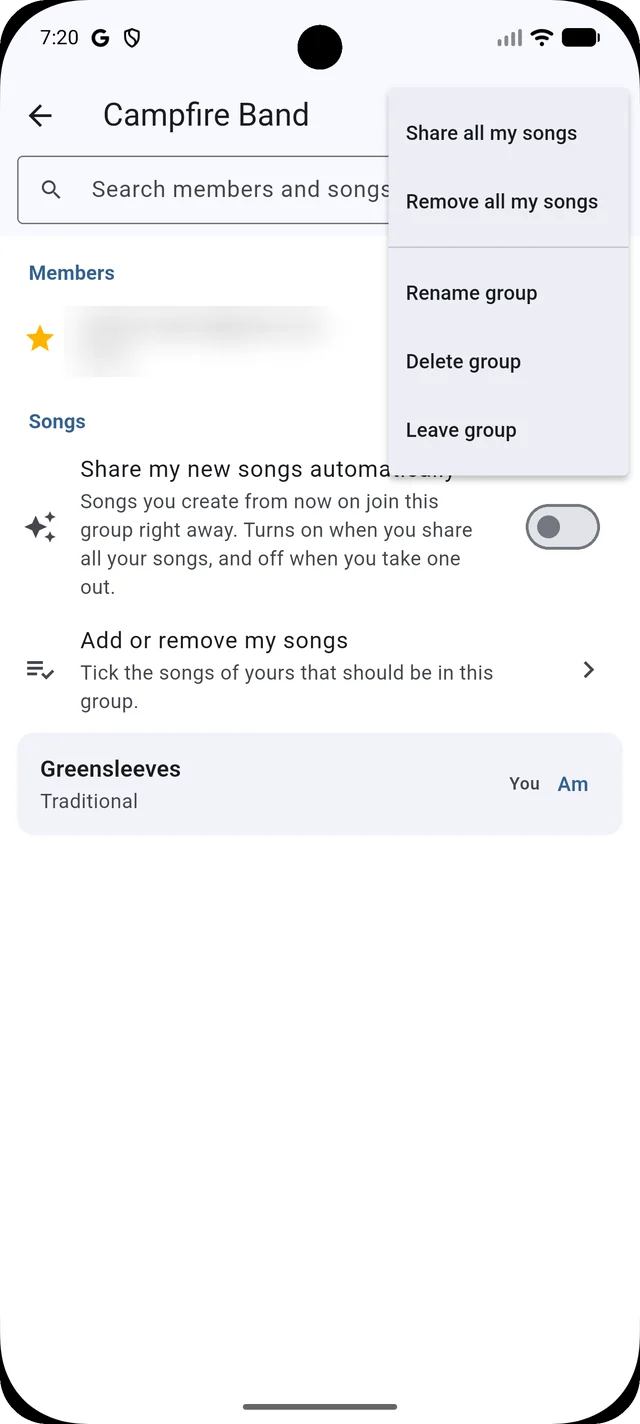
- Menu (three dots) – share or remove all your songs, rename, delete or leave the group.
- Share my new songs automatically – new songs you create join the group by themselves.
- Add or remove my songs – choose songs one by one.
 ABCD
5Invite people
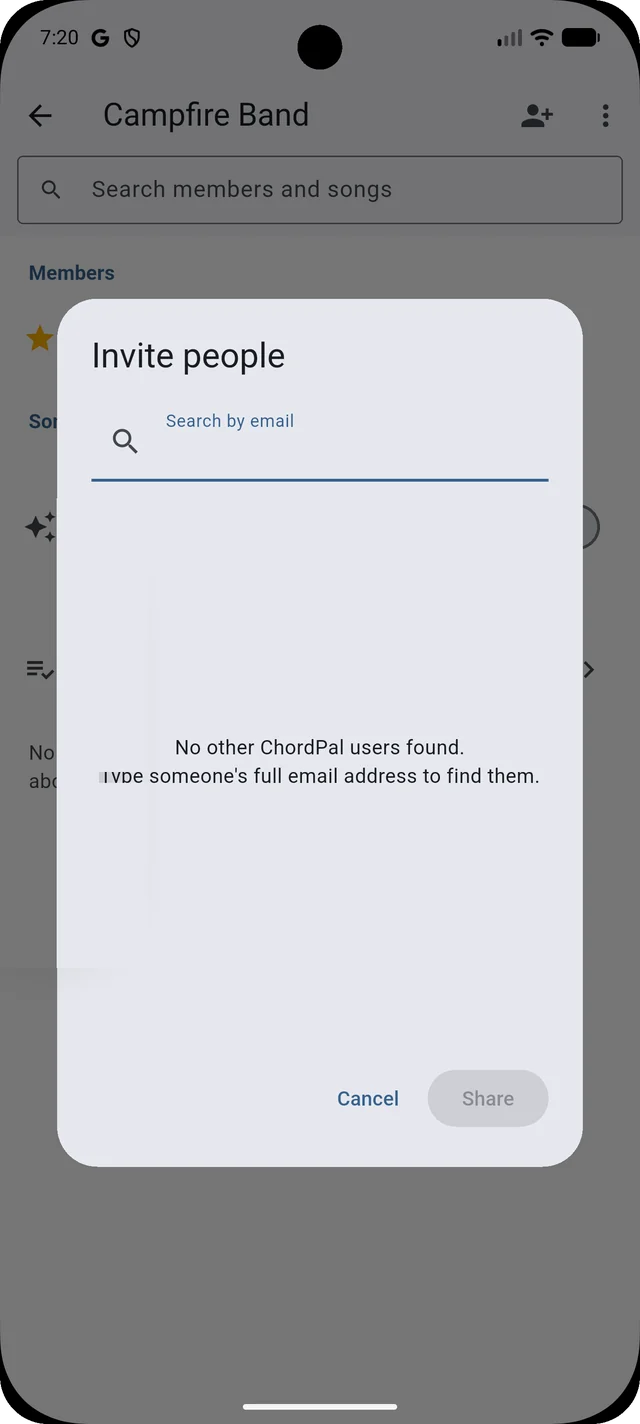
Tap the invite icon, type the person’s full email address and tap Share. They see the invitation under Groups and can Join if they have Pro.
 AB
6Add your songs
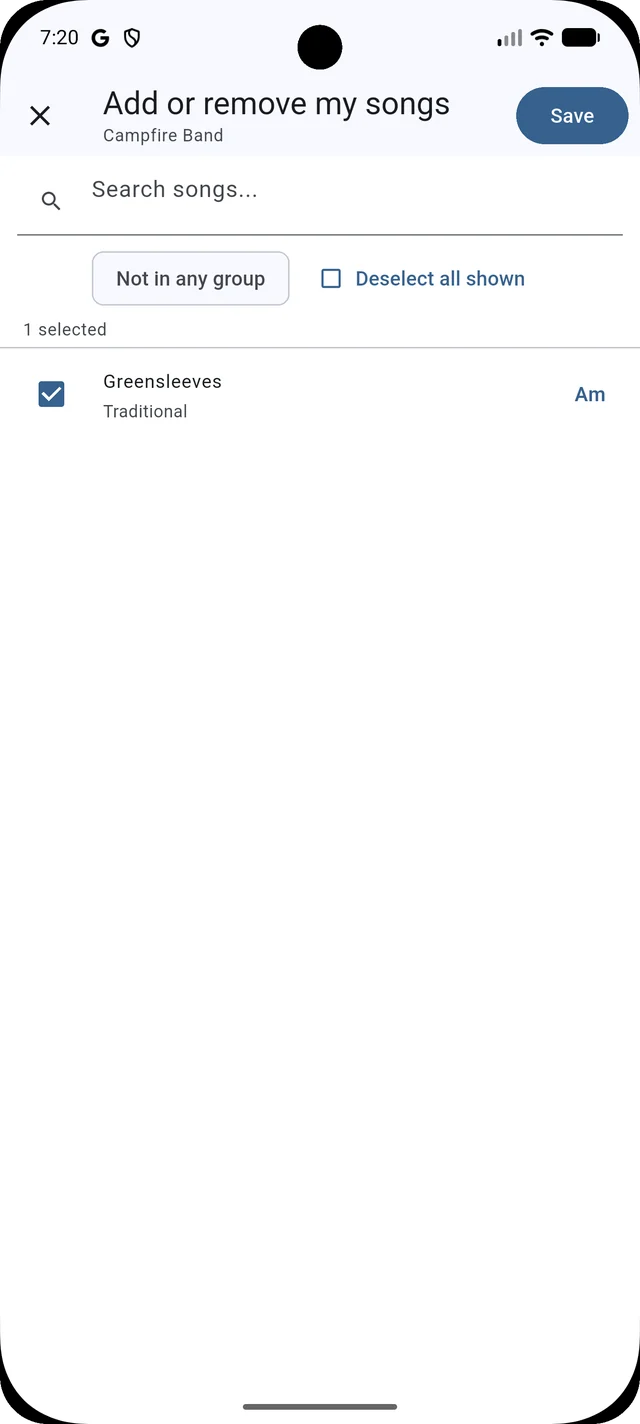
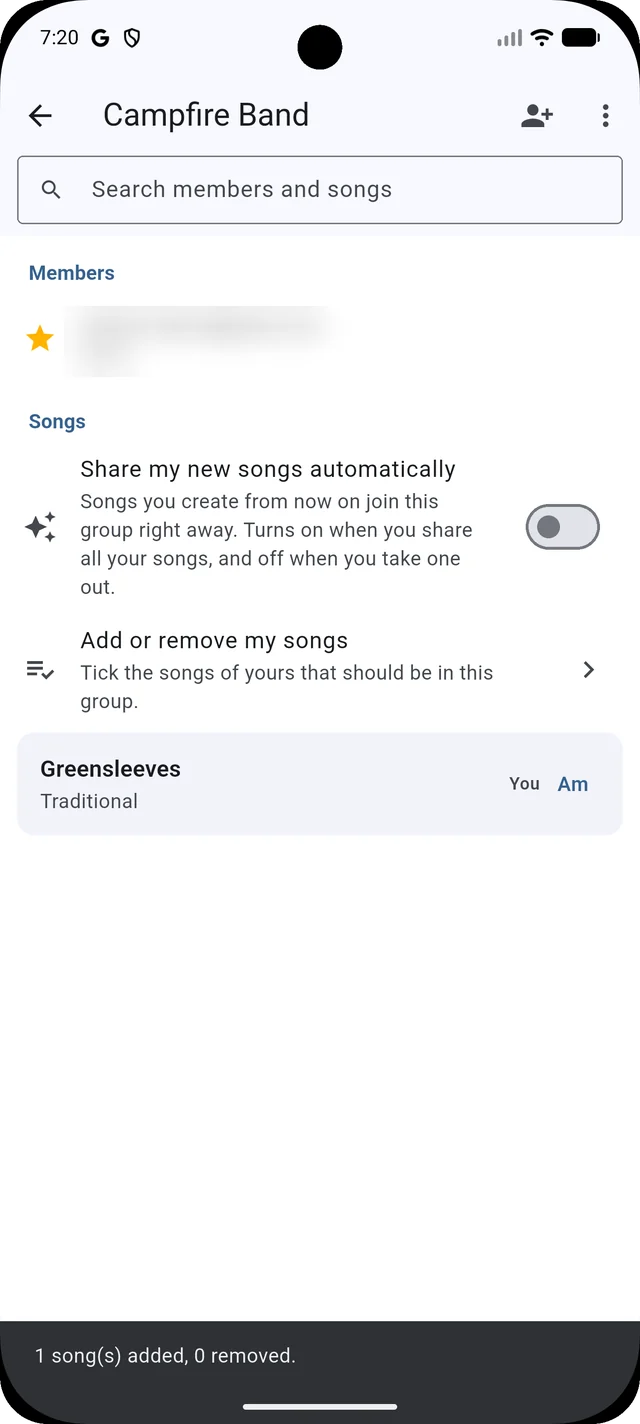
Tap Add or remove my songs, tick the songs of yours that should be in the group and tap Save. Not in any group shows songs you have not shared yet.
 ABC
 A
7Group songs in your Song Library
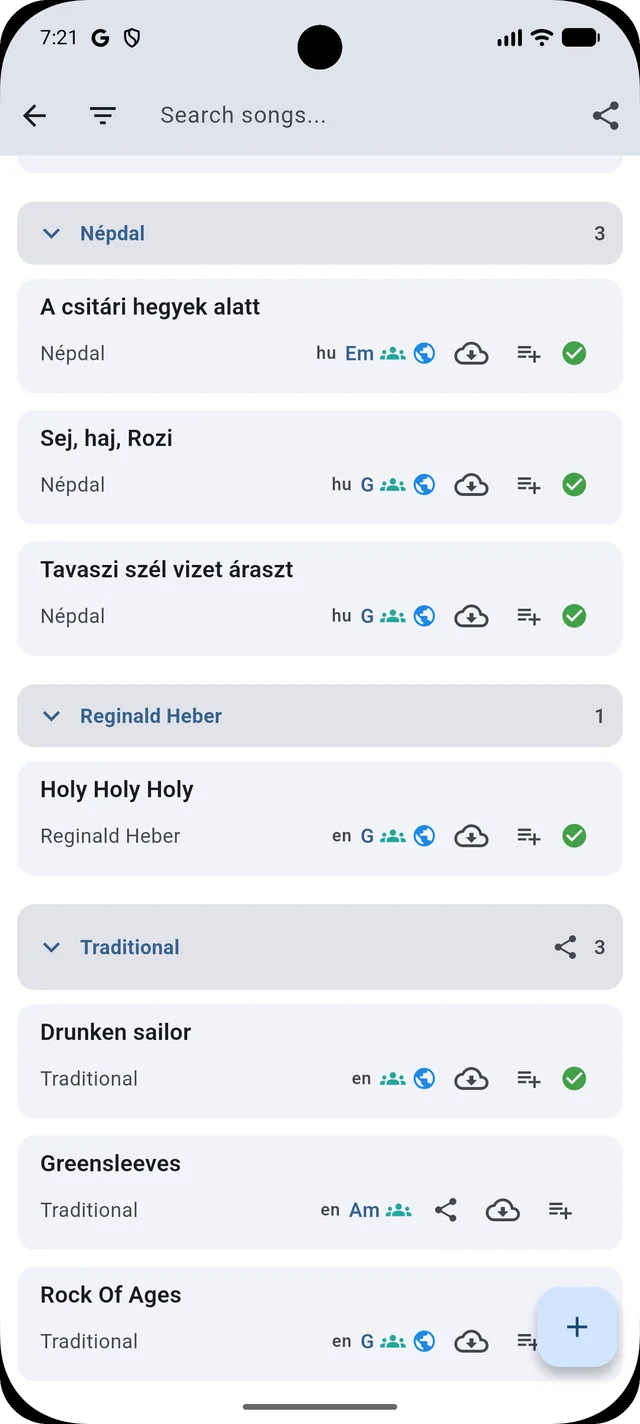
Songs shared with a group appear in your Song Library with a small group icon. Hover over it, or tap it, to see the group names.
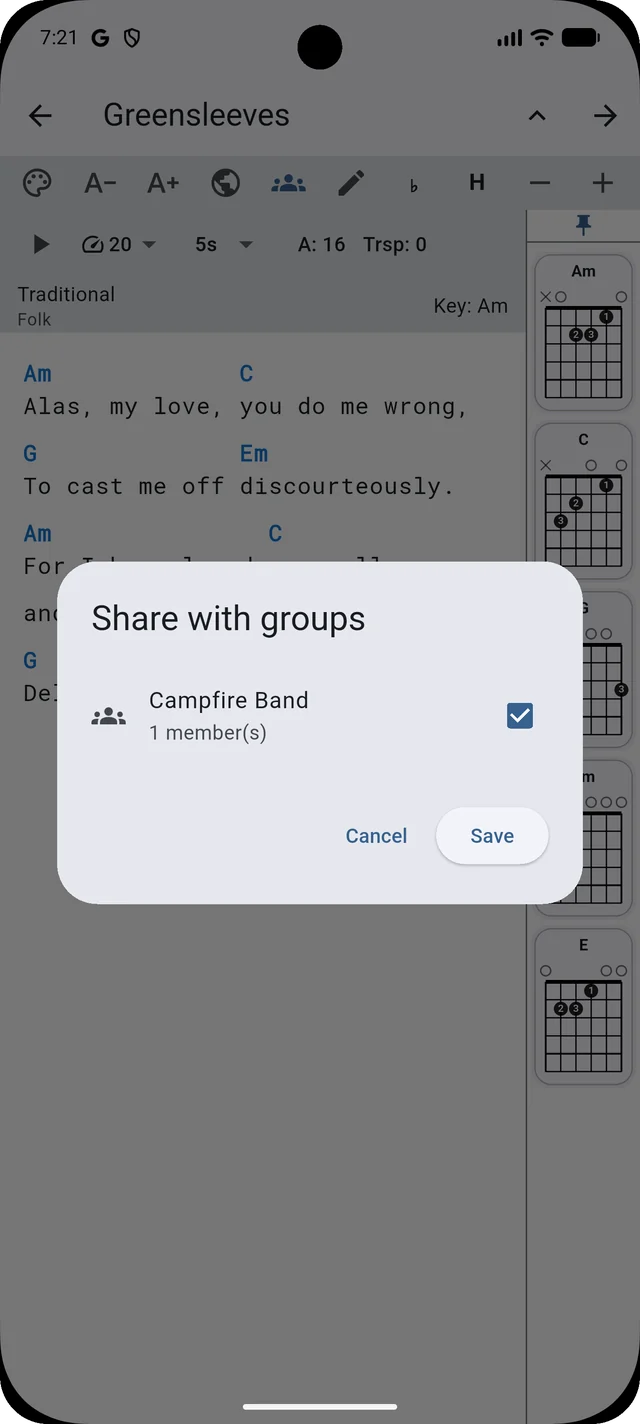
You can also share a single song: open it, show the toolbar and tap the group button, tick the groups and Save.
 A
 ABC
8The group menu
- Share all my songs / Remove all my songs – in one tap.
- Rename group, Delete group – for the admin.
- Leave group – your songs leave the group with you. Songs always stay with their owner.
 A